How to Use TODAY Formula in MS Excel
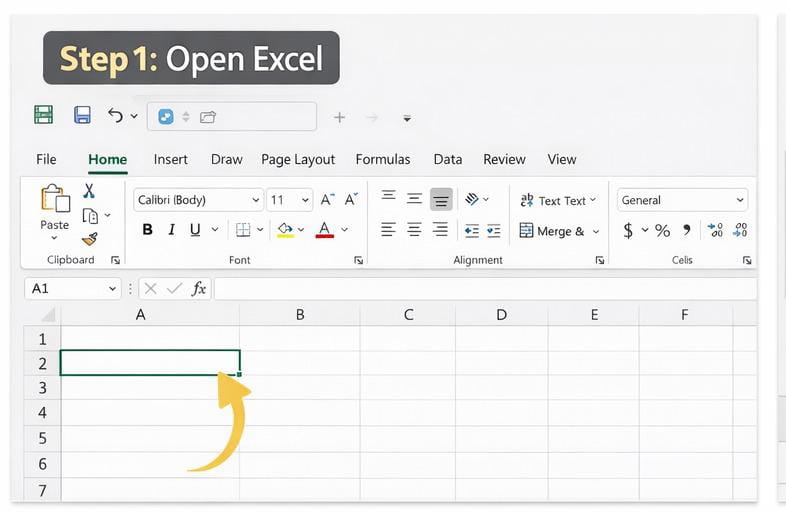
Step 1: Open Excel
Open Microsoft Excel and create a new blank worksheet.
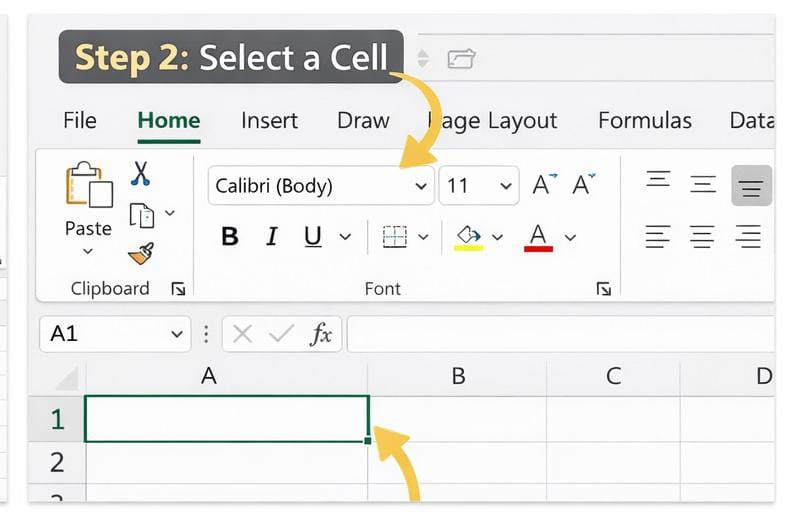
Step 2: Select a Cell
Click on any cell where you want today’s date.
Example: Click on A1
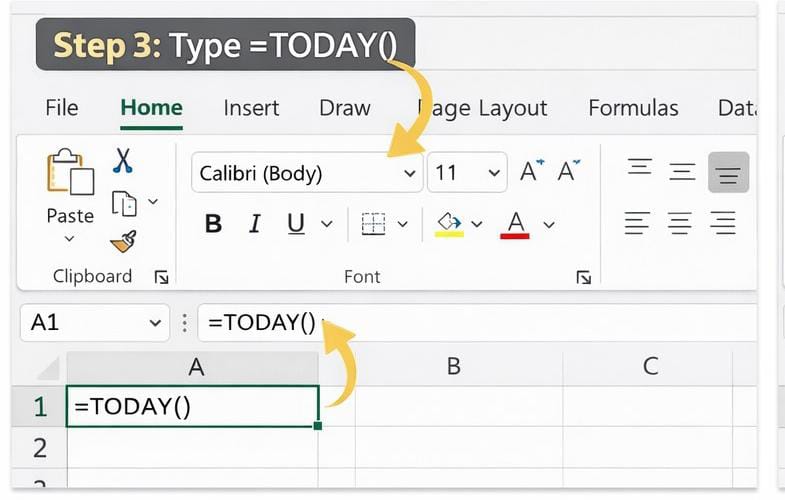
Step 3: Type the Formula
In the selected cell, type:
=Today()
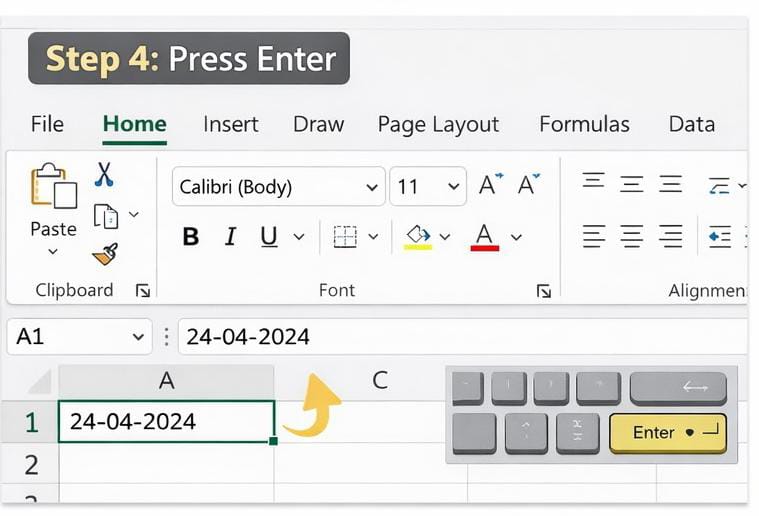
Step 4: Press Enter
Press Enter on your keyboard.
You will see today’s current date automatically.
Example Output:
24-02-2024 (depends on current date)
How to Use NOW Formula in MS Excel
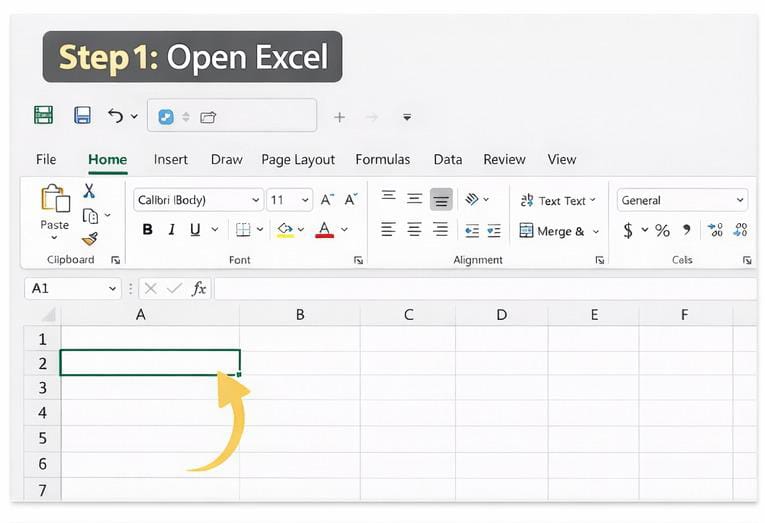
Step 1: Open Excel
Open Microsoft Excel and create a new blank worksheet.
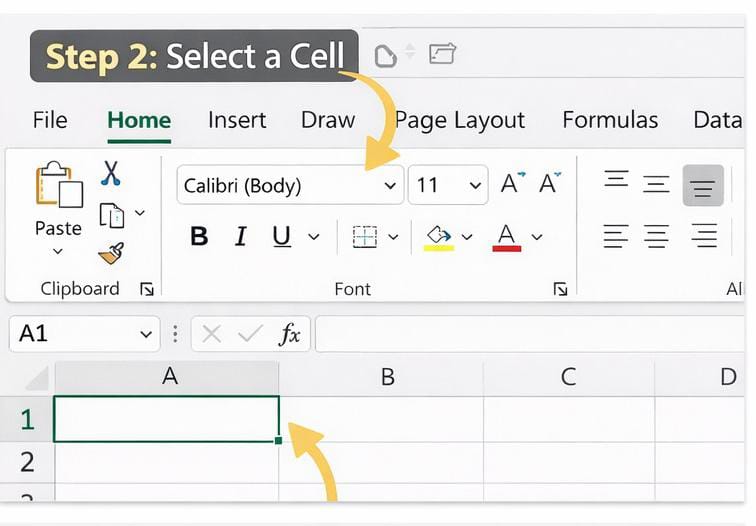
Step 2: Select a Cell
Click on any cell where you want to display the date and time.
Example: Click on A1
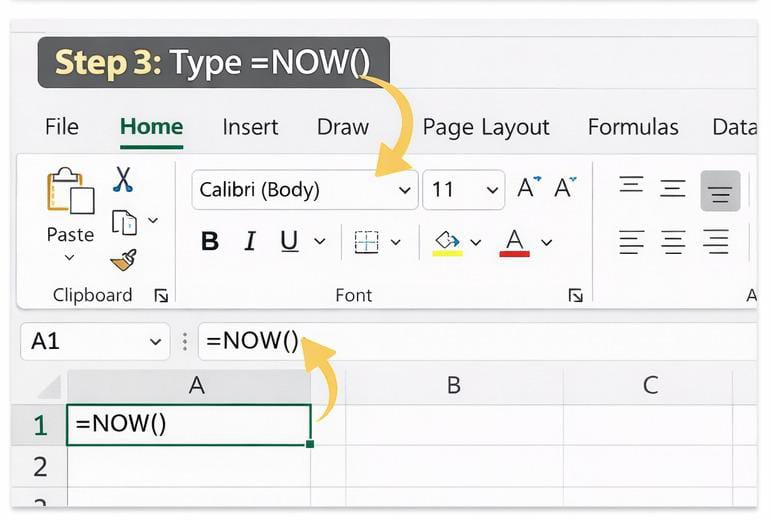
Step 3: Type the Formula
=Now()
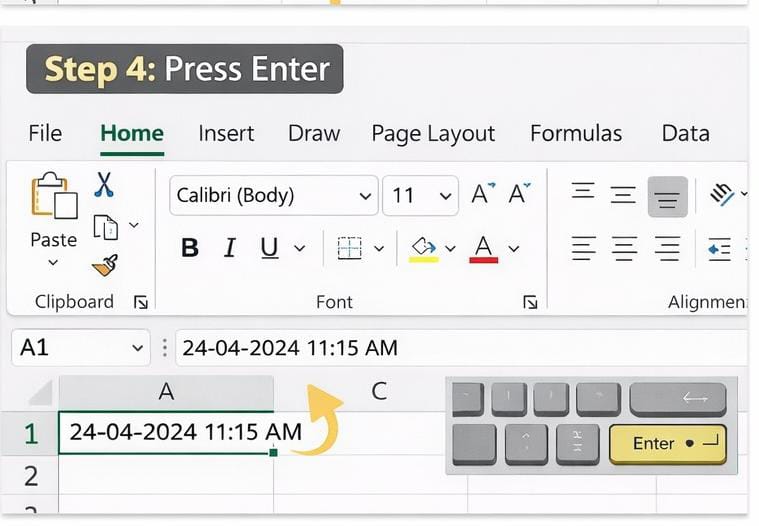
Step 4: Press Enter
Press Enter on your keyboard.
You will see current date + current time.
Example Output:
24-02-2024 11:15 AM
(Time will change according to your system.)
How to Use DATEDIF Formula in MS Excel
Step 1: Open Excel
Open Microsoft Excel and take a blank sheet.
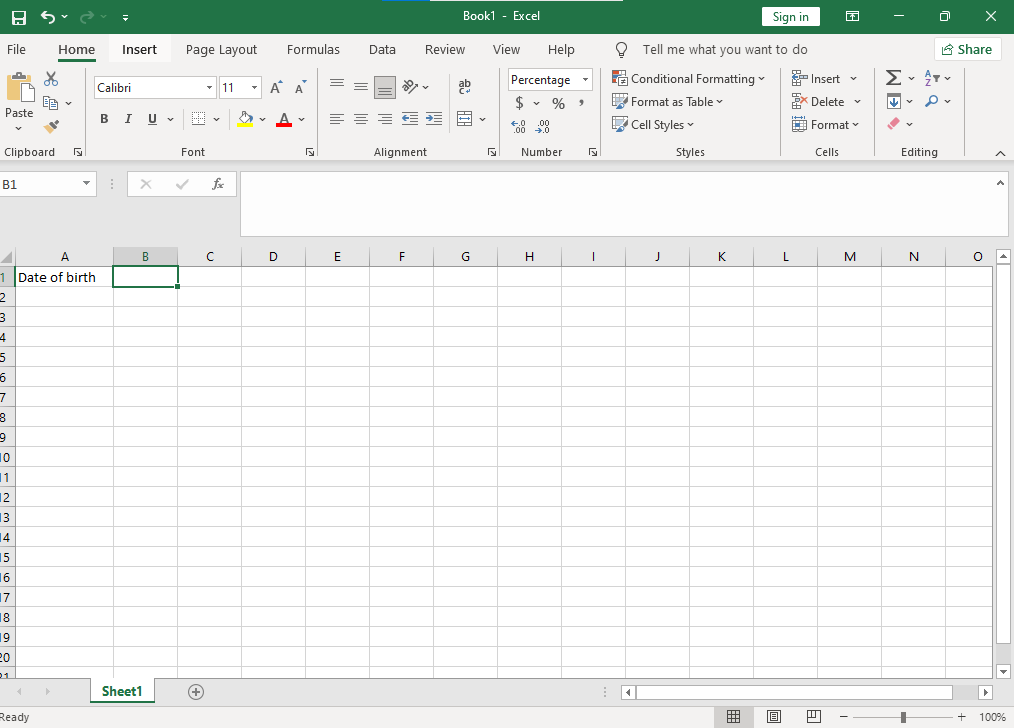
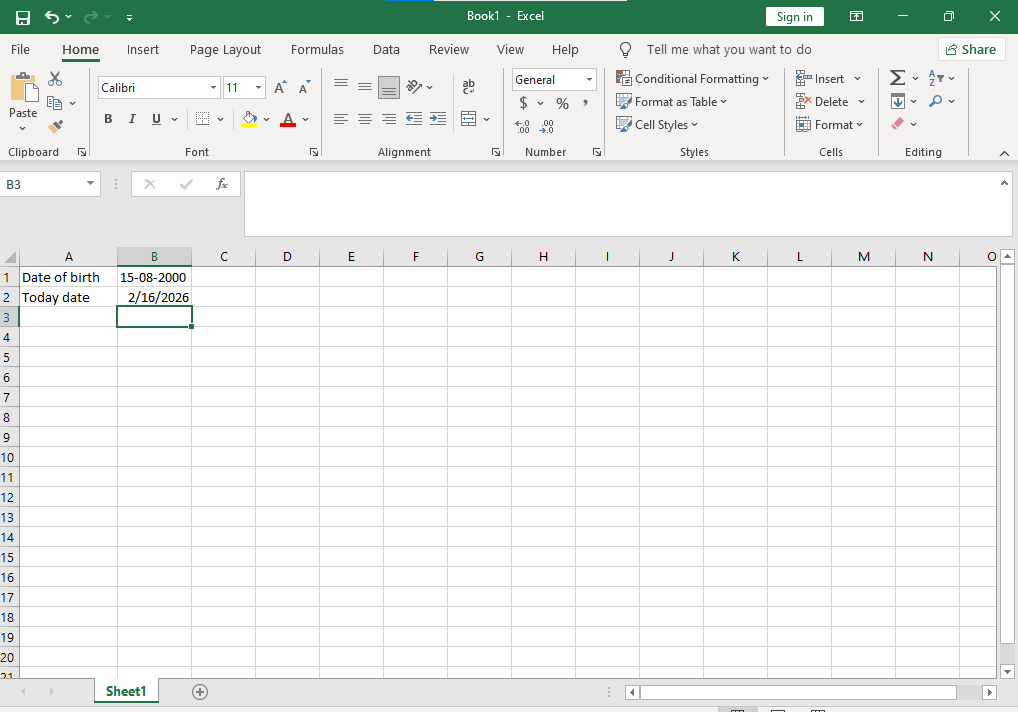
Step 2: Enter Date of Birth
In cell A1 type:
Date of Birth
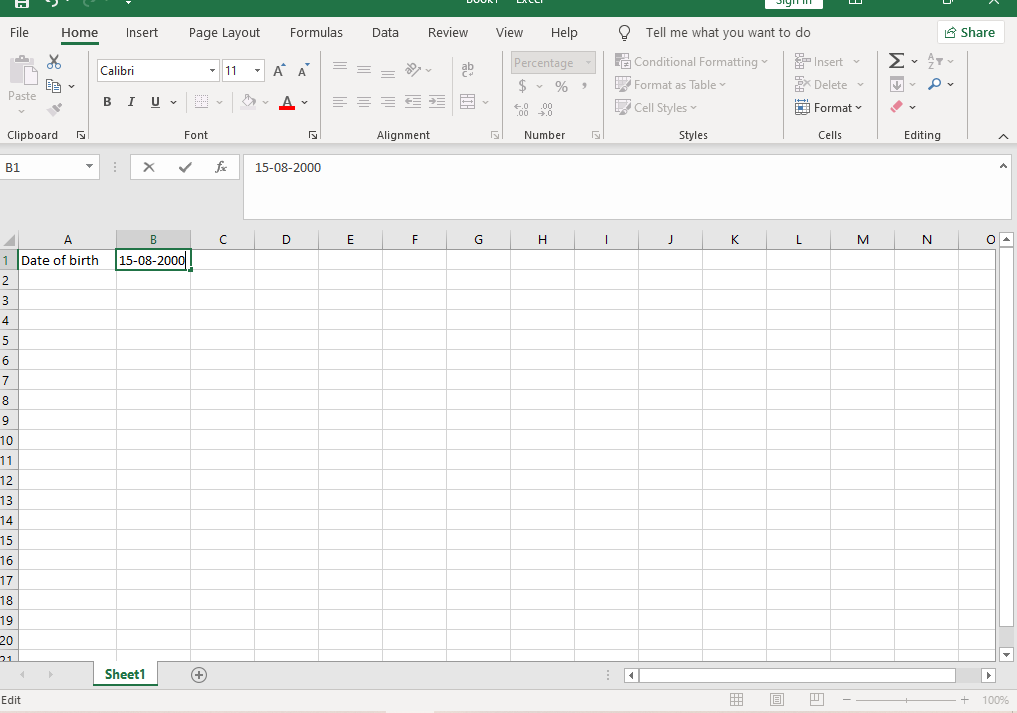
In cell B1 type:
15-08-2000
Step 3: Enter Today’s Date
In cell A2 type:
Today Date
In cell B2 type:
=TODAY()
Press Enter
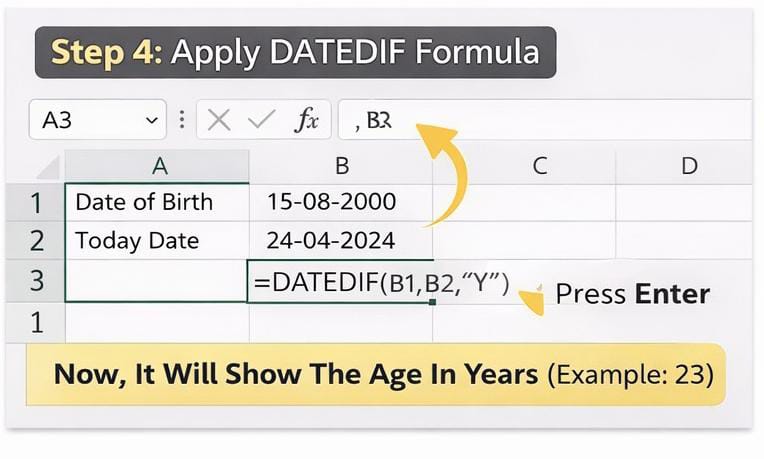
Step 4: Apply DATEDIF Formula
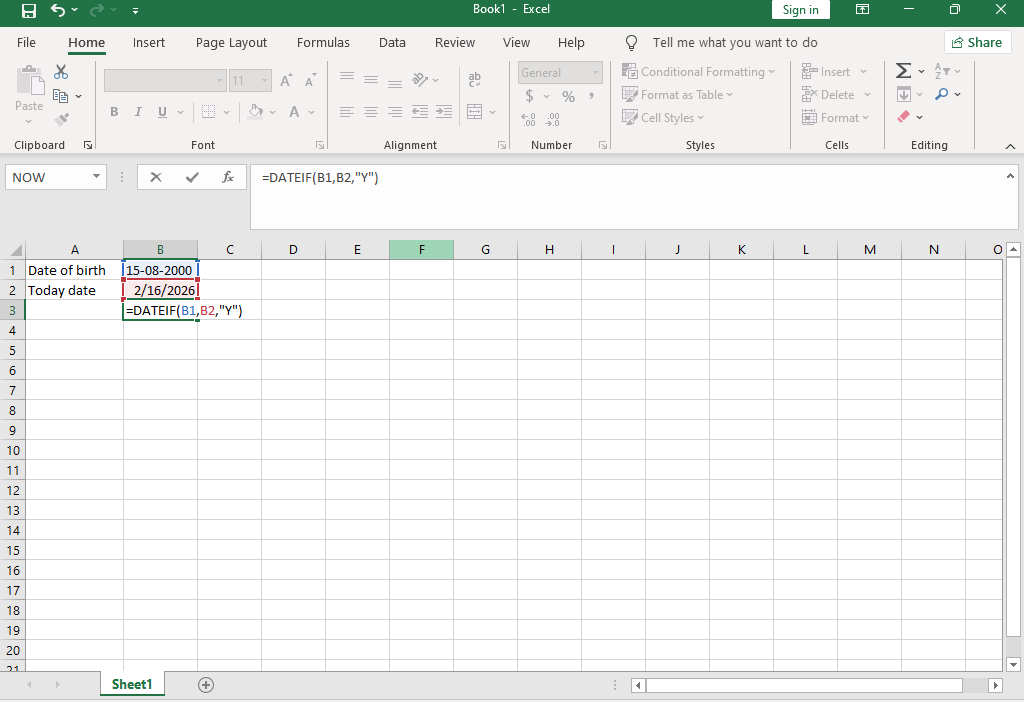
Click on B3
Type this formula:
=DATEDIF(B1,B2,”Y”)
Press Enter
How to Use EOMONTH in MS Excel
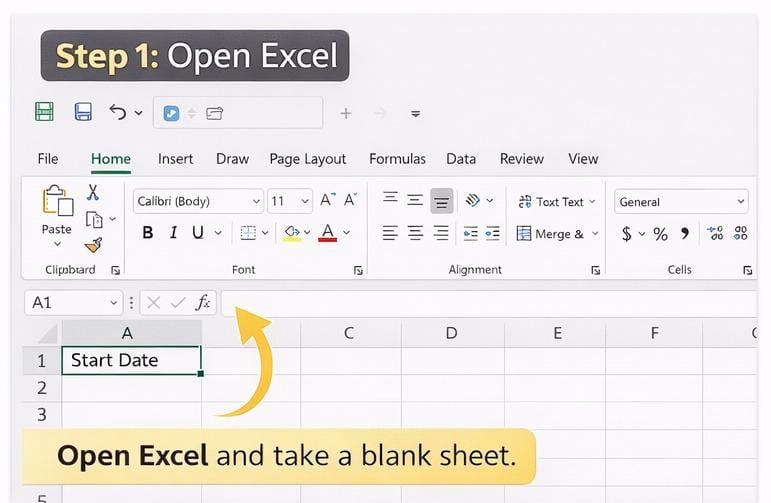
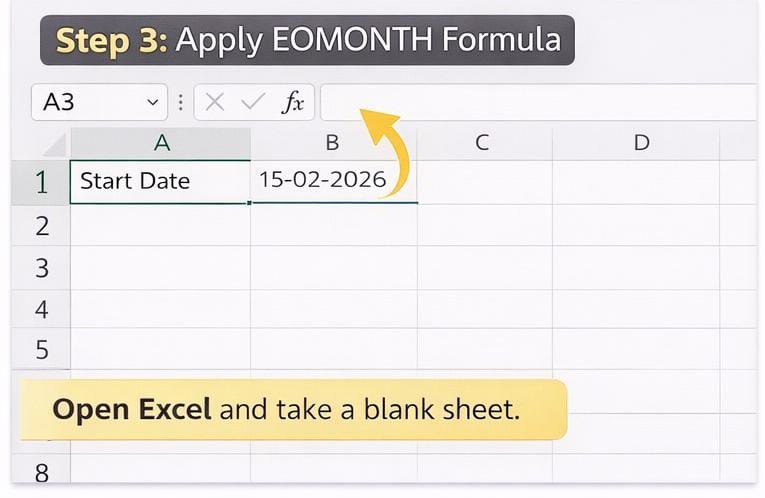
Step 1: Open Excel
In cell A1, type:
14-02-2026
Step 2: Get Last Date of Same Month
In cell B1, type:
=EOMONTH(A1,0)
Result: 28-02-2026
Step 3: Get Last Date of Next Month
=EOMONTH(A1,1)
Result: 31-03-2026
Step 4: Get Last Date of Previous Month
=EOMONTH(A1,-1)
Result: 31-01-2026
How to Use WORKDAY Formula in MS Excel
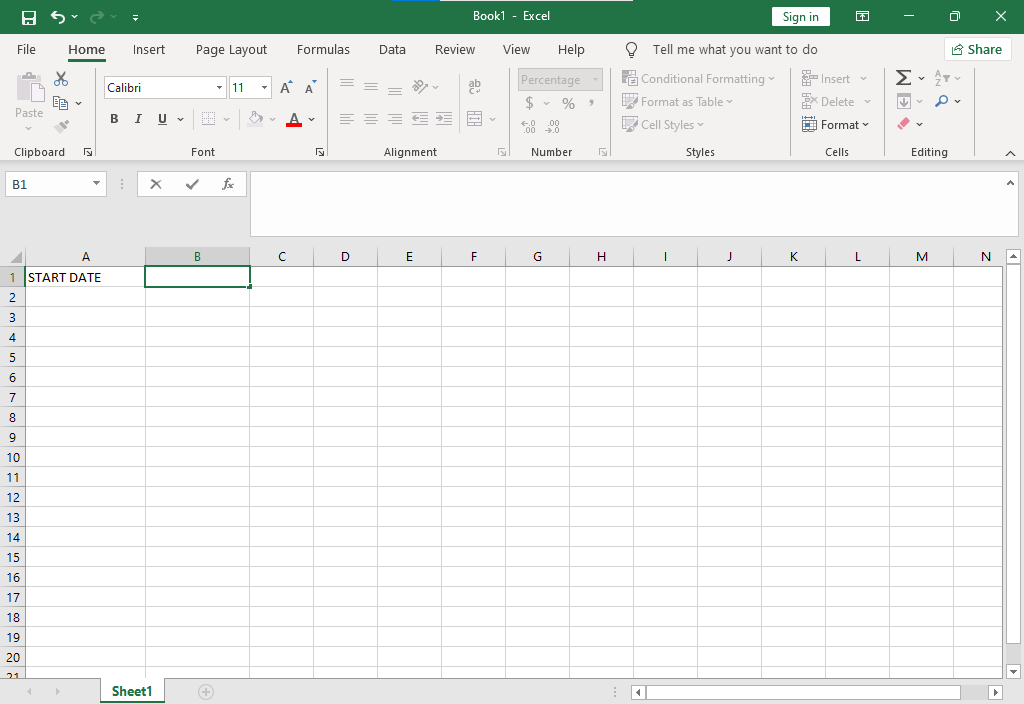
Step 1: Open Excel
Open Microsoft Excel and take a blank sheet.
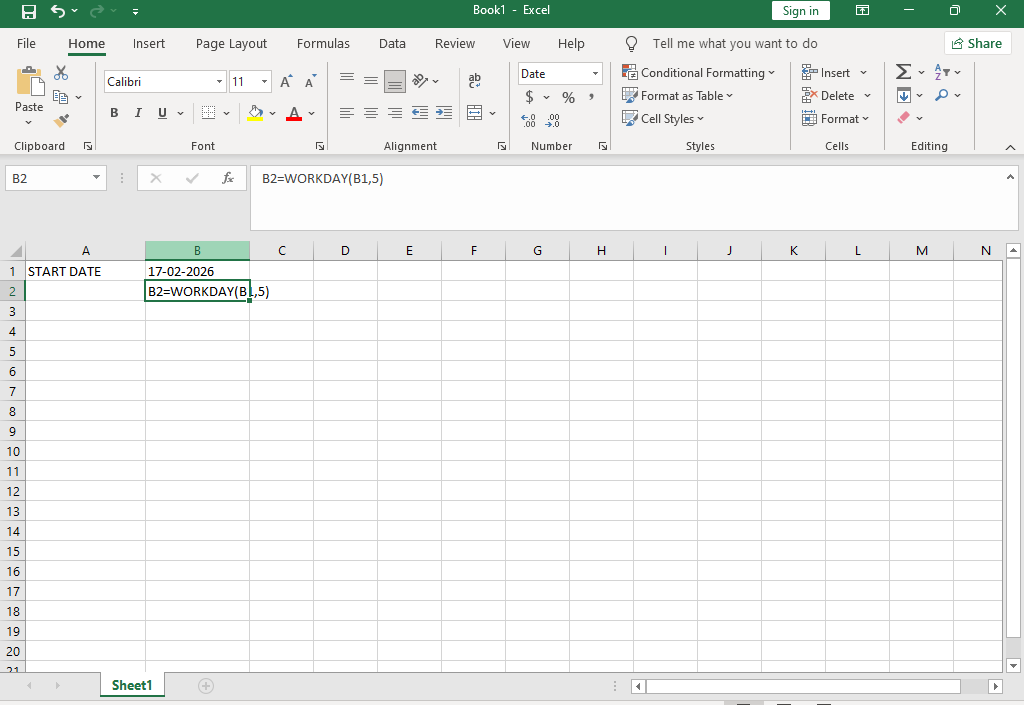
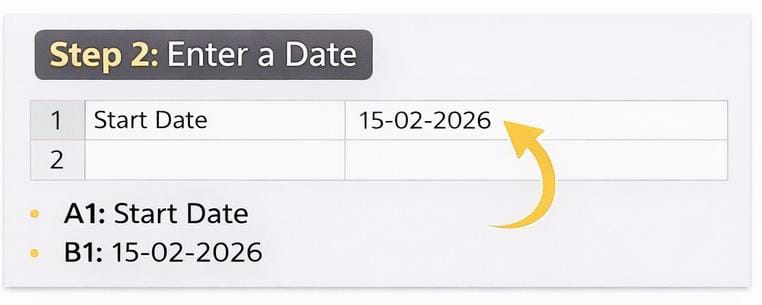
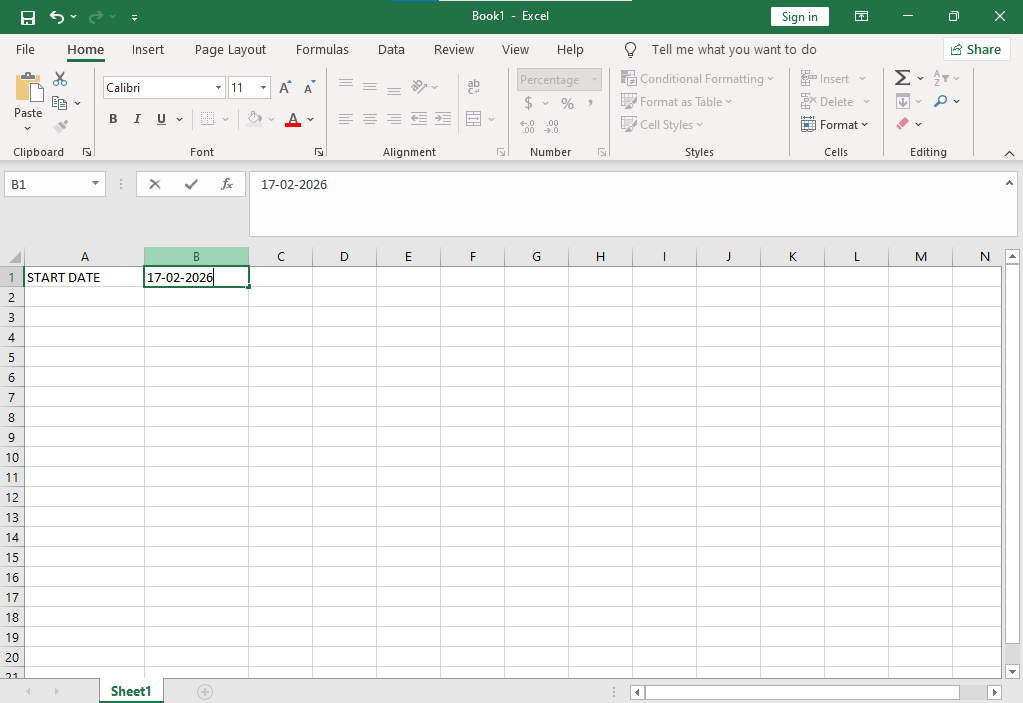
Step 2: Enter Start Date
In cell A1 type:
Start Date
In cell B1 type:
17-02-2026
Step 3: Add Working Days
Click on B2
Type:
=WORKDAY(B1,5)